 Open app
Give your team the right access
Review members, assign suitable roles and keep workspace access up to date.
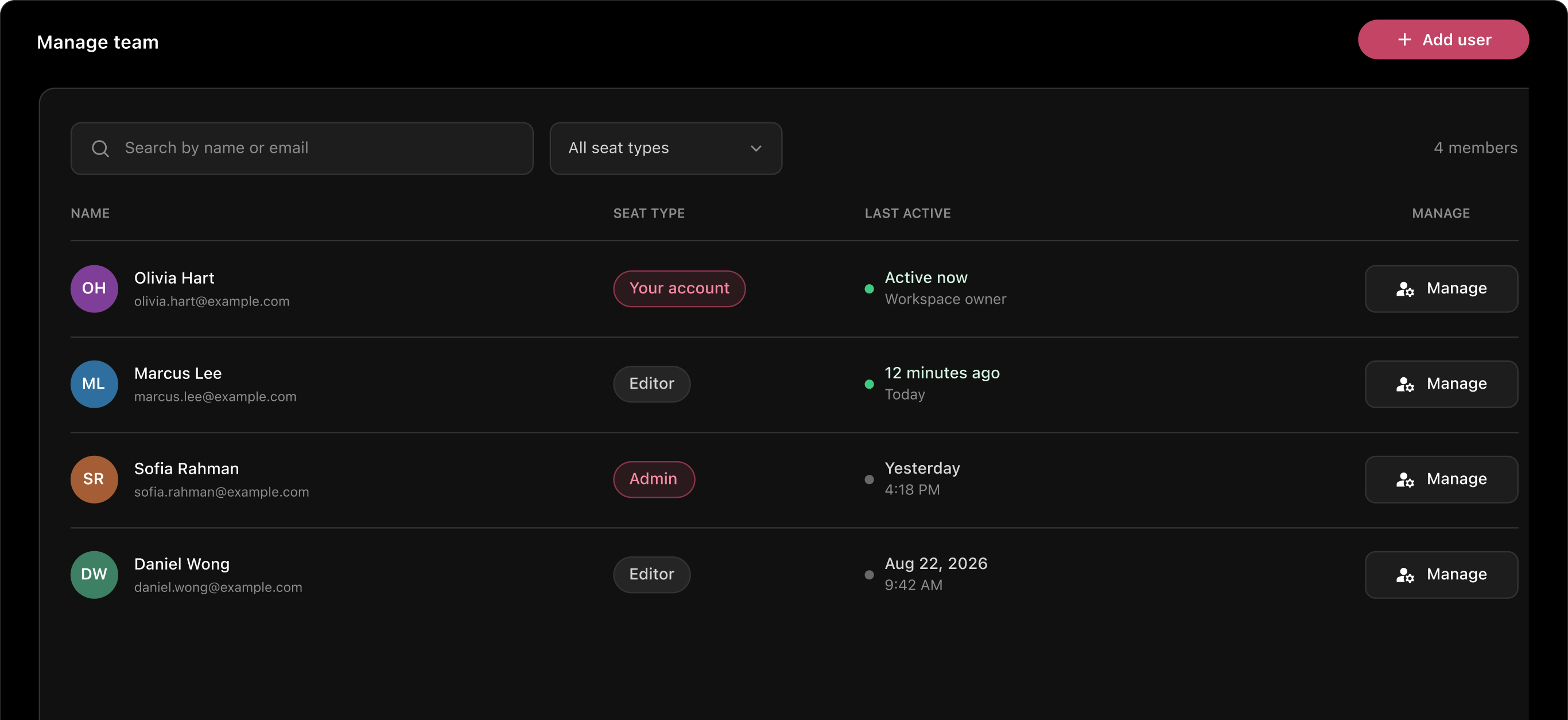
Seats and roles
A seat gives a team member access to your workspace. Their role determines the actions they can perform.
Admins manage users, billing and workspace settings. Editors create and update projects. Choose the role each person needs for their work, and review access when responsibilities change.
Review your team
Open Team to view the people in your workspace. Check names, email addresses and seat types, and use the available search or filters to find a member.
Confirm that the member is in the correct workspace before changing their access. A workspace administrator should review team membership regularly.
Add a team member
- 1. Open Team and select Add user.
- 2. Enter the team member’s work email address.
- 3. Choose the appropriate role or seat type.
- 4. Review available seats and any additional charge.
- 5. Confirm the details before completing the action.
Use a separate account for each person so access can be managed individually.
Change roles or remove access
Use the member’s Manage action to review the options available to you. Check whether another person needs access to their work before changing or removing a member.
When someone leaves your team, review their account access, project responsibilities and any links they have shared. Removing an account does not necessarily revoke every previously shared link.
Seat billing
Additional seats take effect immediately and are charged on a prorated basis for the remaining billing period. Seat removals take effect from the next billing period.
Review the subscription seat count separately from member access. Ask your administrator or support contact if you need help understanding the next billed quantity.
Keep accounts secure
Use individual accounts and keep sign-in details private. Do not share passwords or one-time codes with other team members or with support.
If access appears incorrect or you suspect an account issue, contact support using your workspace details and a clear description. Avoid sending sensitive customer information unless it is needed and an appropriate channel has been agreed.